Master the Remove Tool’s Find Distractions Feature
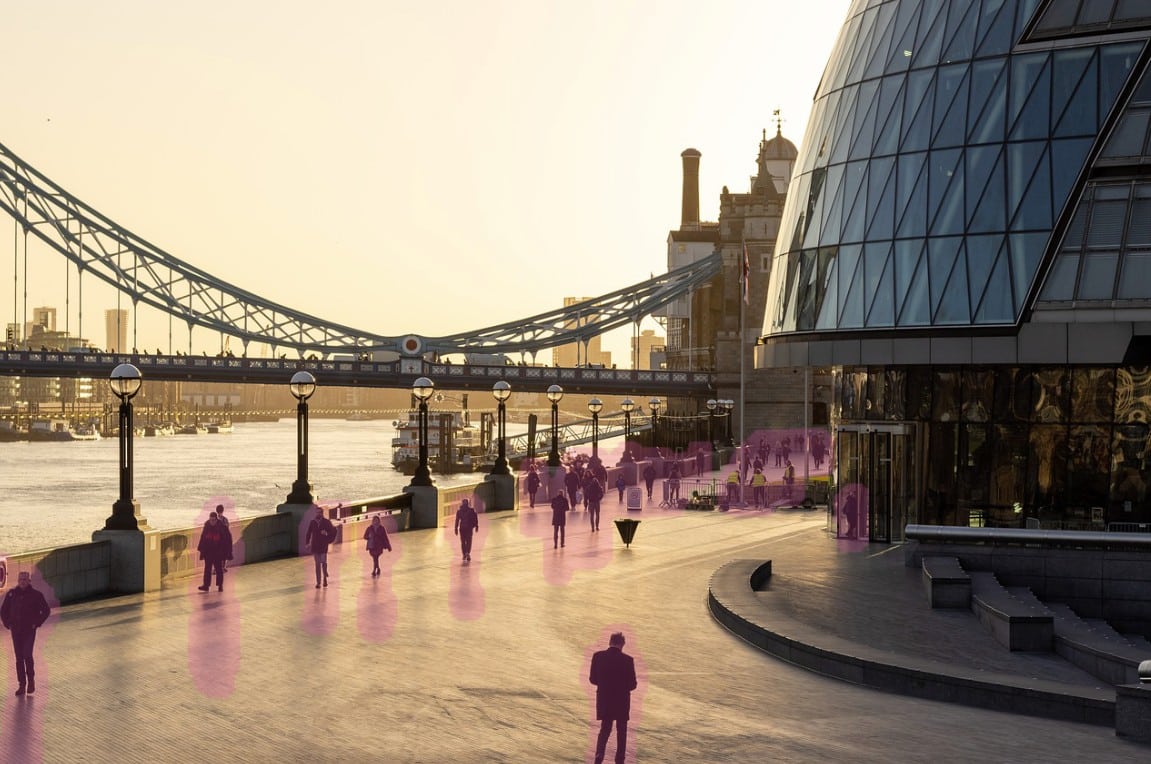
Power lines ruining your sunset? Tourists photobombing your architecture shot? Photoshop 2025’s Find Distractions feature handles all of this with a single click.
What Find Distractions Does
The Find Distractions menu in the Options bar detects and removes wires, cables, or people from images using Adobe Firefly’s generative AI. This isn’t just enhanced content-aware fill – it’s intelligent scanning that identifies what belongs and what doesn’t.
Two detection modes:
- Wires and Cables – Power lines, telephone cables, linear distractions
- People – Removes strangers while protecting your main subject
Best news? Using Generative Remove doesn’t consume credits as of September 2025. Clean up photos all day without watching your count drain to zero.
Quick Setup Guide
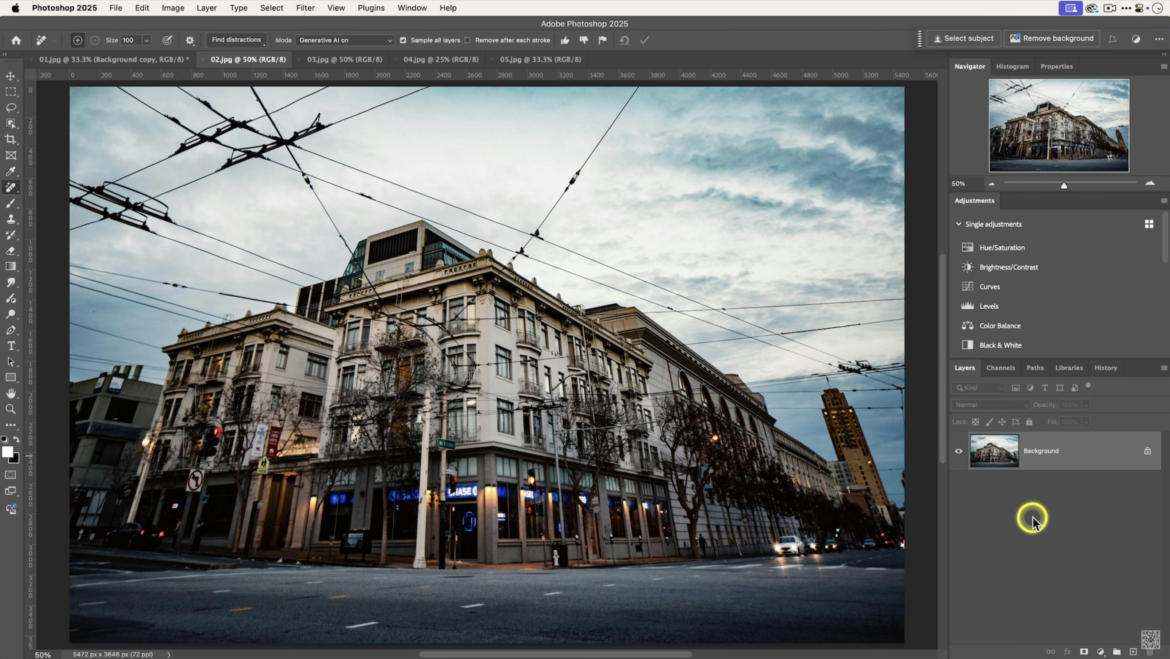
Finding the tool: Press J or locate the bandage icon with sparkles under the Spot Healing Brush Tool.
Essential settings:
| Setting | Recommendation | Why |
| Sample All Layers | ON | Work non-destructively on new layer |
| Generative AI Mode | ON | Enable AI-powered removal |
| Remove After Each Stroke | OFF | Multiple strokes before processing |
Create a new, blank layer above your image before you start. This preserves your original and lets you delete removal attempts that fail.
Removing Wires and Cables
- Select Remove Tool (press J).
- Confirm Generative AI is “On” in Options bar.
- Click Find Distractions → Wires and Cables.
- Review pink overlay showing detected areas.
- Click Apply to current strokes.
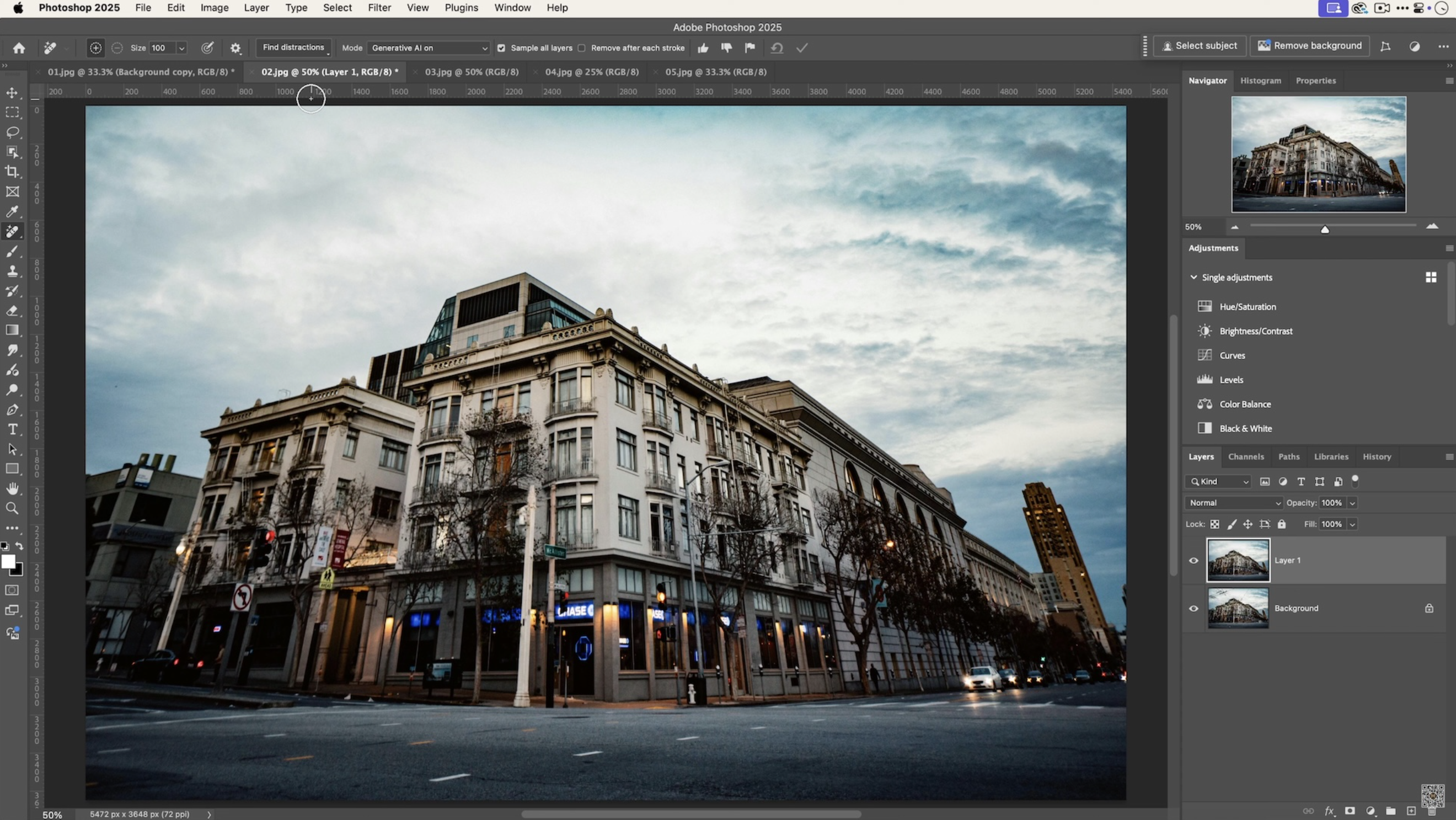
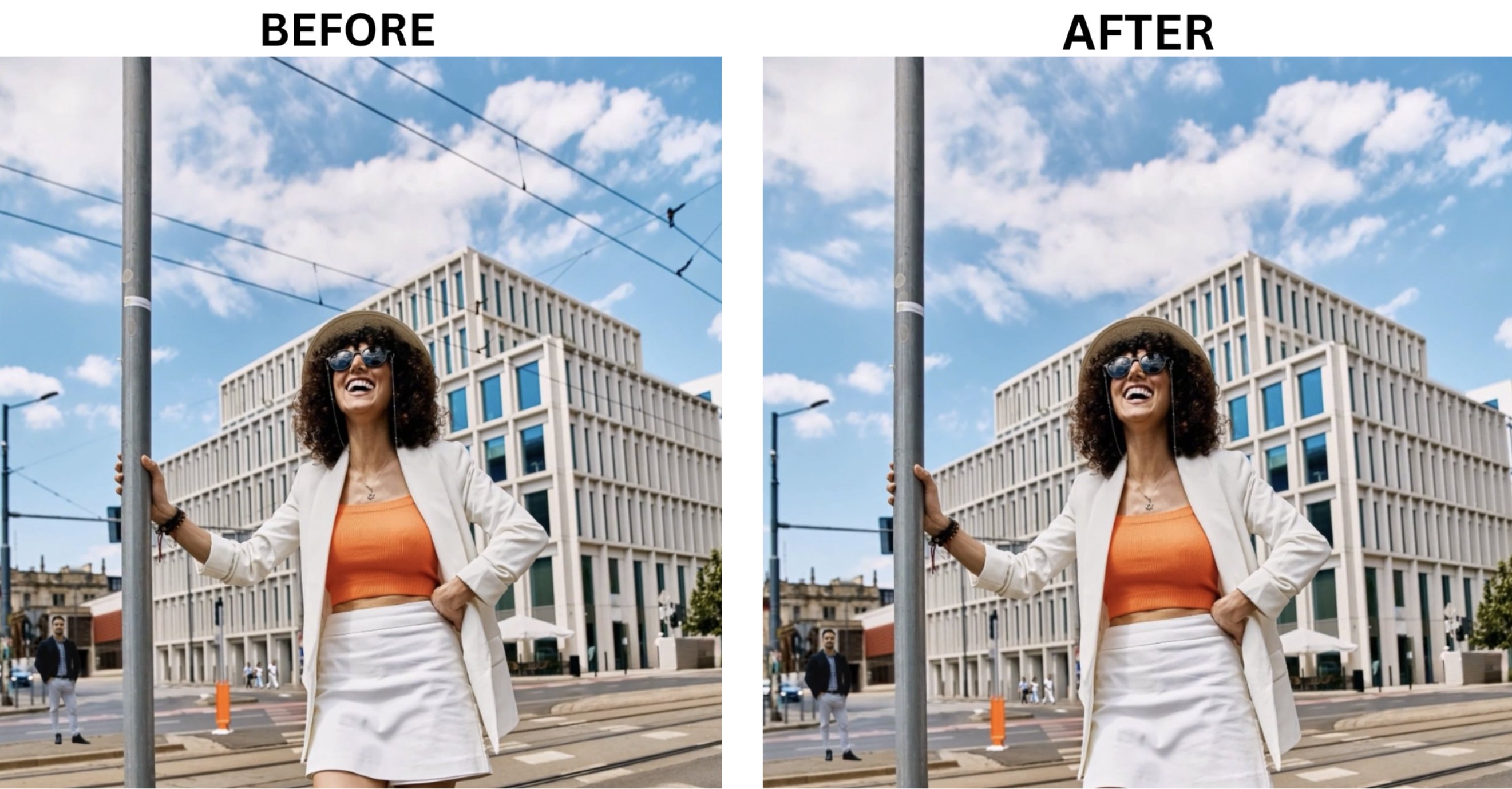
The AI highlights wires in pink before removal. If it misses sections, manually paint over them with the Remove Tool brush. Use + (Add) or – (Subtract) modes to refine detection.
Removing People
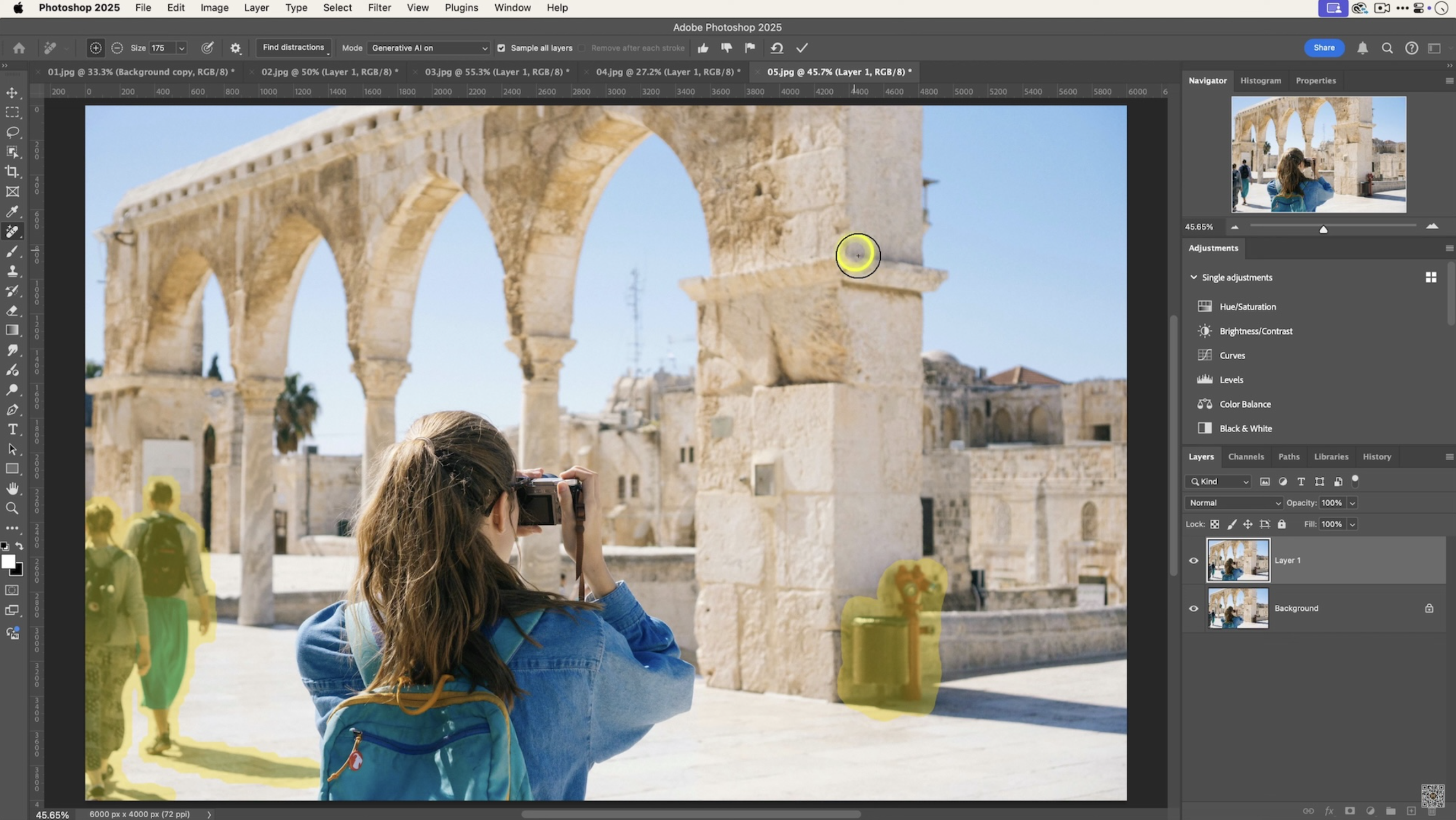
- Select Remove Tool.
- Click Find Distractions → People.
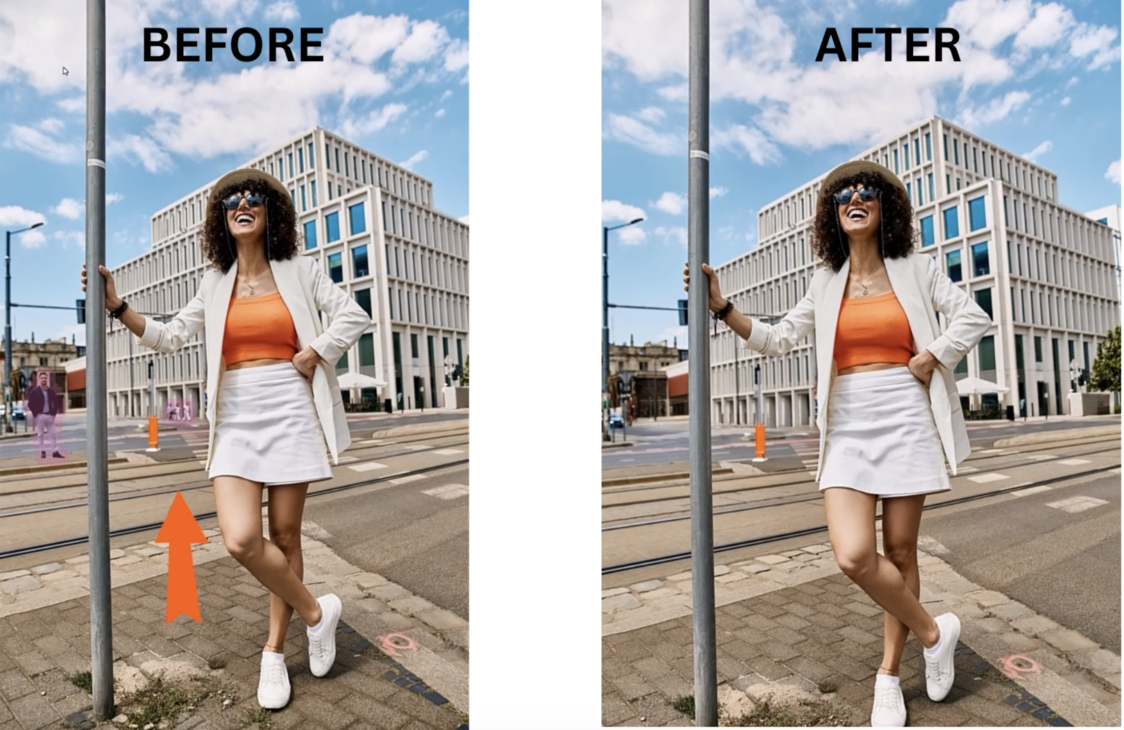
- AI identifies and highlights background people in pink.
- Main subject stays protected automatically.
- Click Apply.
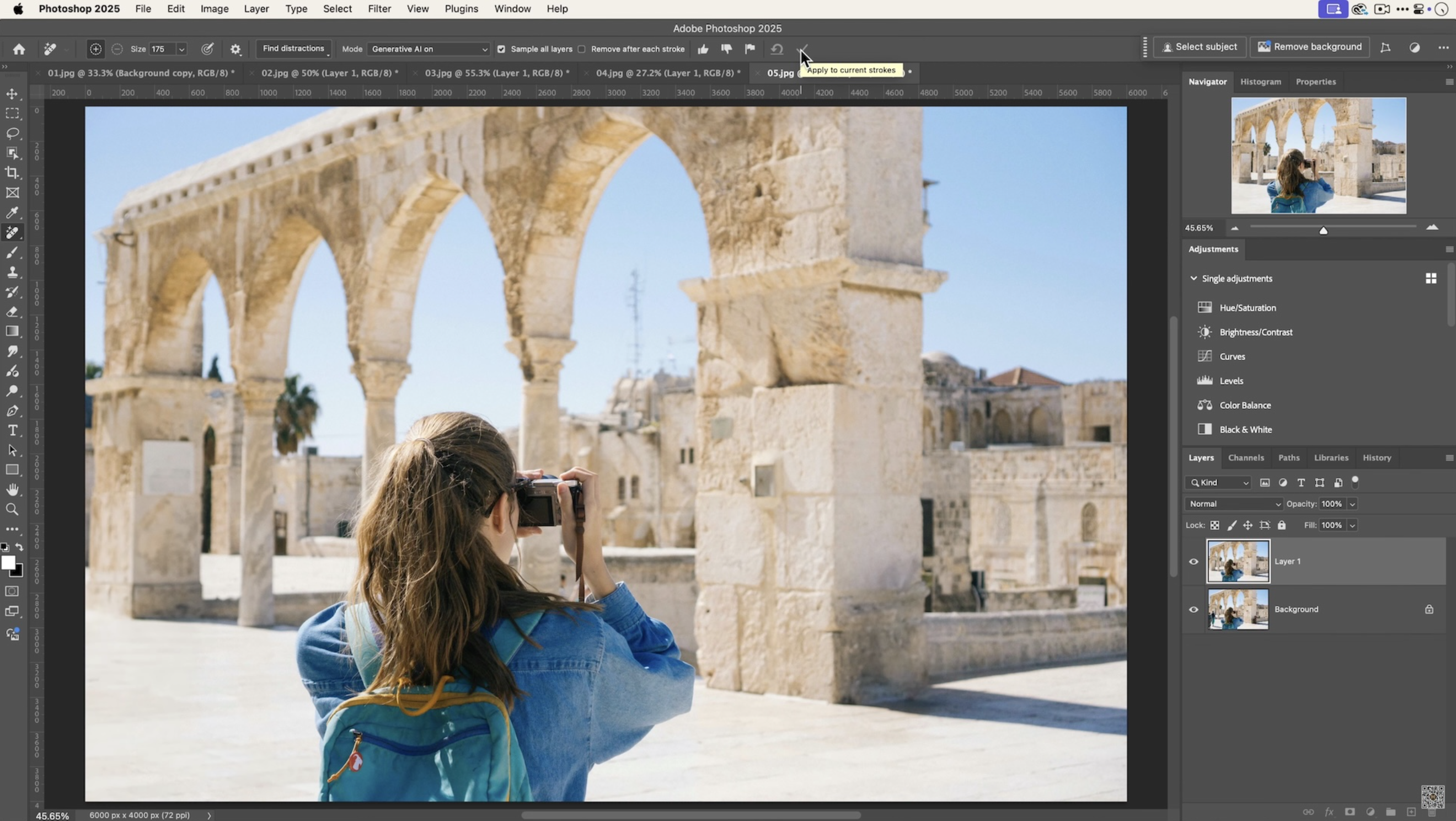
The tool distinguishes between your subject and background distractions. Portrait with three strangers behind? Only background people get flagged for removal.
When to Turn AI Off
Toggle Generative AI on or off in settings. Turning it off processes locally and works faster for simple tasks.
Use AI ON for:
- Complex backgrounds
- Large removal areas
- Intricate patterns
- When traditional methods failed
Use AI OFF for:
- Small blemishes
- Quick touch-ups
- Uniform backgrounds
- Faster local processing
Common Problems and Fixes
- Tool runs slowly or crashes
Go to Preferences → Image Processing → Remove Tool Processing and select “More Stable” for better performance.
- Unrealistic results or artifacts
- Paint over problem areas again with smaller strokes
- Create looser selections around objects
- Switch between AI On and Off modes
- Manually touch up remaining issues
- Won’t detect people
AI needs clear visibility. Extreme angles, heavy shadows, or distant figures might not register. Manually paint over them instead.
- Shadows remain after removing people
The March 2025 update improved shadow detection, but occasionally you’ll need to paint over remaining shadow artifacts manually.
Think Before You Click
Removing wires from utility poles makes poles look disconnected and strange. Some cables are structural elements worth keeping. Background people sometimes establish scale or context. An empty plaza looks weird when it should naturally contain pedestrians. Use the feature thoughtfully, not automatically.
Real-World Uses
- Travel Photography – Eliminate tourists from landmarks.
- Real Estate – Remove cars, trash bins, construction equipment.
- Product Photography – Clean studio backgrounds.
- Street Photography – Remove distracting signage while preserving atmosphere.
- Portrait Work – Clear background clutter.
The Bottom Line
Find Distractions transforms tedious photo cleanup into single-click operations. Power lines? Gone. Random tourists? Vanished. That person who walked through your frame at the wrong moment? Never existed.
The feature works best with good judgment about what actually needs removal. Not every flagged “distraction” distracts from your image. Sometimes background elements contribute to your story.
Since it doesn’t consume credits, experiment freely. Remove too much, undo, try again. The tool encourages exploration without penalty.