The End of Bad Composites: “Harmonize” is Officially Released
If you have ever tried to cut a subject out of a photograph and drop them into a completely different background, you already know the pain. You spend ten minutes carefully masking out the hair, place the subject into a sunset scene, and suddenly realize they look like a glowing, blue-tinted alien. The lighting is completely wrong, the shadows do not match, and it looks like a cheap sticker pasted onto a postcard.
For years, the only way to fix this was by spending hours messing with Curves, Levels, and countless clipping masks to manually blend the lighting. It was tedious, and quite frankly, it was a workflow killer.
But as of mid-July 2026, those days are officially over. Adobe has finally moved its highly anticipated “Harmonize” feature out of beta and into the main Photoshop release. Here is a deep dive into why this tool is about to become the most used button in your digital workspace.
What is the Harmonize Tool?
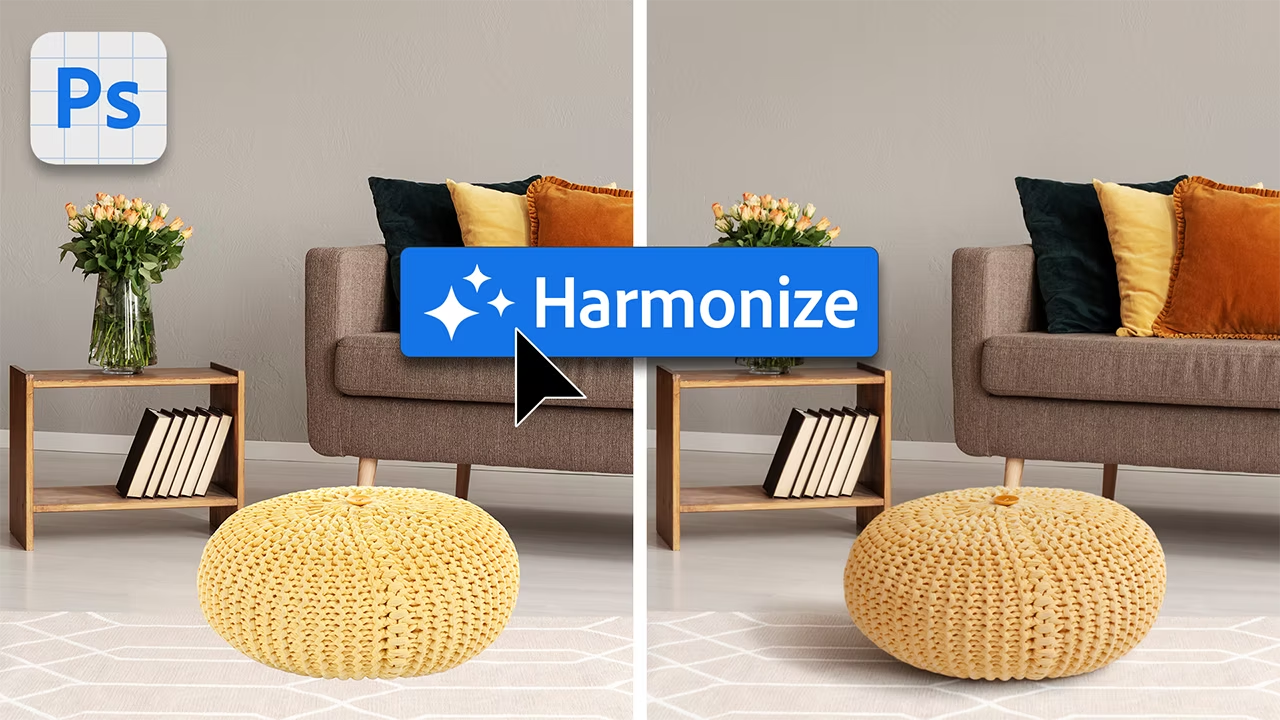
The Harmonize tool is essentially a magic wand for photo compositing. Instead of forcing you to manually guess the correct color temperature and exposure, Harmonize uses AI to analyze your entire image and automatically adjusts the color, lighting, shadows, and contrast of your newly placed element so it blends naturally with its surroundings.
But it goes even further than just basic color correction. The updated 2026 version of Harmonize automatically creates realistic shadows between your composite layers, grounding your subject in the scene. It can even add reflections of the element into the background, making it look as though your subject was physically standing there when the photo was taken.
“Harmonize accomplishes in seconds what used to take several minutes of manual color matching and adjustment layers, radically transforming the speed of professional compositing workflows.”
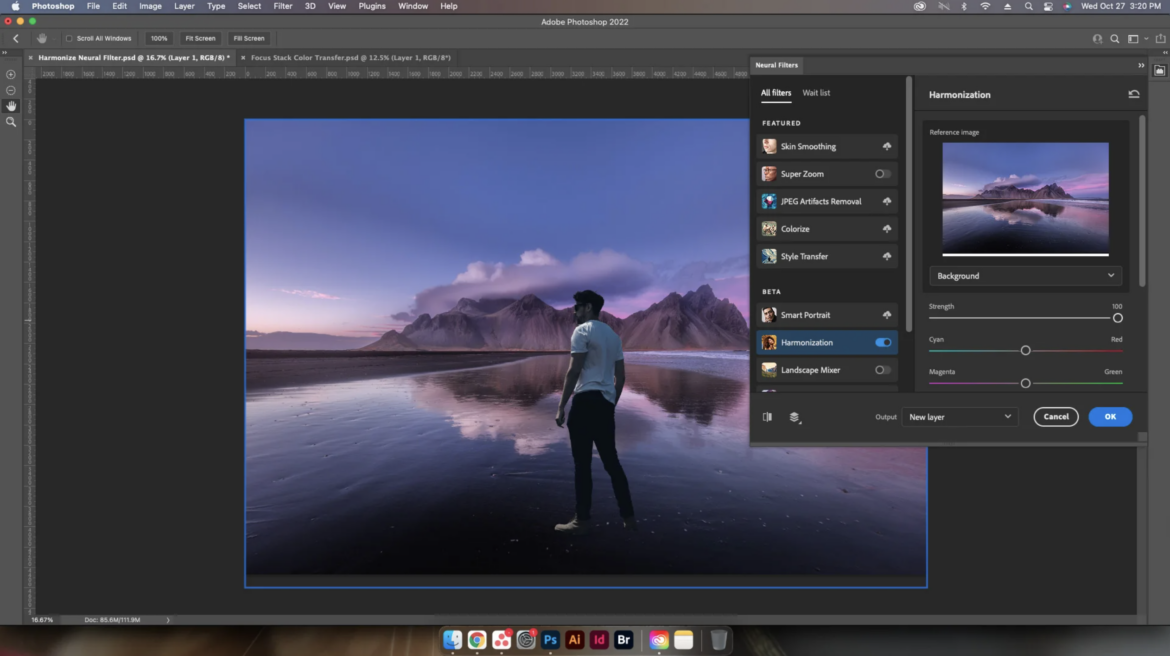
How to Use Harmonize in Your Workflow
Using the tool is surprisingly straightforward. You do not need a degree in color theory to get a cinematic result. If you want to try it out on your next composite, here is the exact step-by-step process:
- Step 1: Open your background image.
- Step 2: Place your second image into the document.
- Step 3: Remove the background from your subject layer.
- Step 4: Resize and reposition the element wherever you want it in the frame.
- Step 5: With your subject placed, simply click Harmonize.
Once you click the button, the software does the heavy lifting. The best part? Photoshop does not just give you a single result and force you to accept it. The tool generates three variations of the harmonization. You can try each variation and choose the one that provides the best fit for the lighting and shadows in your specific scene.
The Fine Print: Resolution and Upscaling
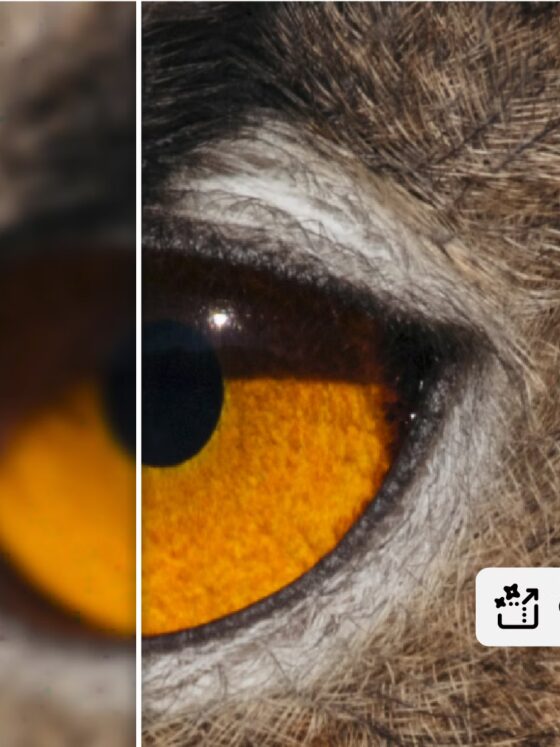
As amazing as this new feature is, we need to talk about the one slight drawback. Because of how the processing handles the blending and shadows, using Harmonize can slightly reduce the resolution in your results.
If you are just posting a fun edit to social media, you will probably never notice. But if you are doing high-end commercial work or preparing a file for print, losing any crisp detail is a problem.
Thankfully, Adobe planned ahead. Photoshop 2026 also introduced a built-in integration with Topaz Gigapixel and Topaz Bloom directly inside the Generative Upscale menu.
Here is a quick reference guide on how to fix the Harmonize resolution drop and handle advanced tweaks:
| The Problem | The Photoshop 2026 Solution |
| Slight Resolution Loss from Harmonize | Use Generative Upscale with Topaz Gigapixel to restore sharp details. |
| Losing Original Highlights | Drag the element’s original layer above the Harmonize layer, add a black mask, and paint with a soft brush to brighten specific areas manually. |
| Matching Edge Details | Use the upgraded Remove Background models before applying Harmonize for perfect, fine-detail cutouts. |
If you combine the lighting perfection of Harmonize with the crisp restoration of Topaz Gigapixel, you get a completely flawless, high-resolution composite in a fraction of the time it used to take.

Time to Update
If you are still manually balancing your green and magenta channels to get a subject to fit into a forest background, do yourself a massive favor and update your software today. The official release of Harmonize is the exact kind of update that makes editing fun again, taking away the technical friction so you can focus on being creative.
Go ahead and grab that picture of your dog and drop it onto the moon. With Harmonize, it will actually look like he belongs there!