Generative Upscale: The New One-Click Fix for Low-Res Client Photos
We have all experienced the exact same heart-sinking moment. You just signed a massive client for a new print campaign. You ask them for their company logo and the hero product shot. A few minutes later, your email dings. You open the attachment, and there it is: a 500-pixel, heavily compressed JPEG that looks like it was downloaded from a Geocities website in 1999. They want it printed on a billboard by Friday.
A few years ago, you would have to reply and politely beg for a vector file or a raw image. Today, in May 2026, you do not have to say a word. You just drop it into Photoshop and use the newest superpower: Generative Upscale.
If you have been sticking to your old workflow and ignoring the “Generative” menus, it is time to stop. Here is a factual, hype-free breakdown of how Photoshop’s new upscaler works, and why it is permanently changing how we handle terrible client assets.
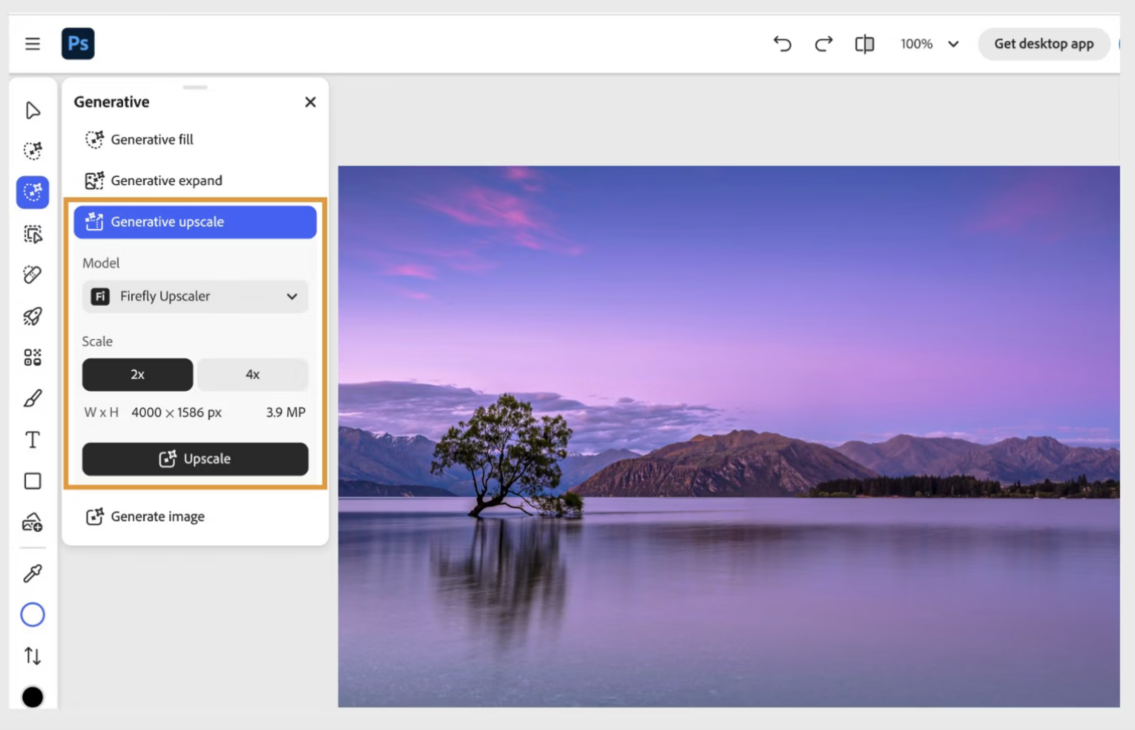
What Actually is Generative Upscale?
To understand why this feature is revolutionary, we have to look at how upscaling used to work.
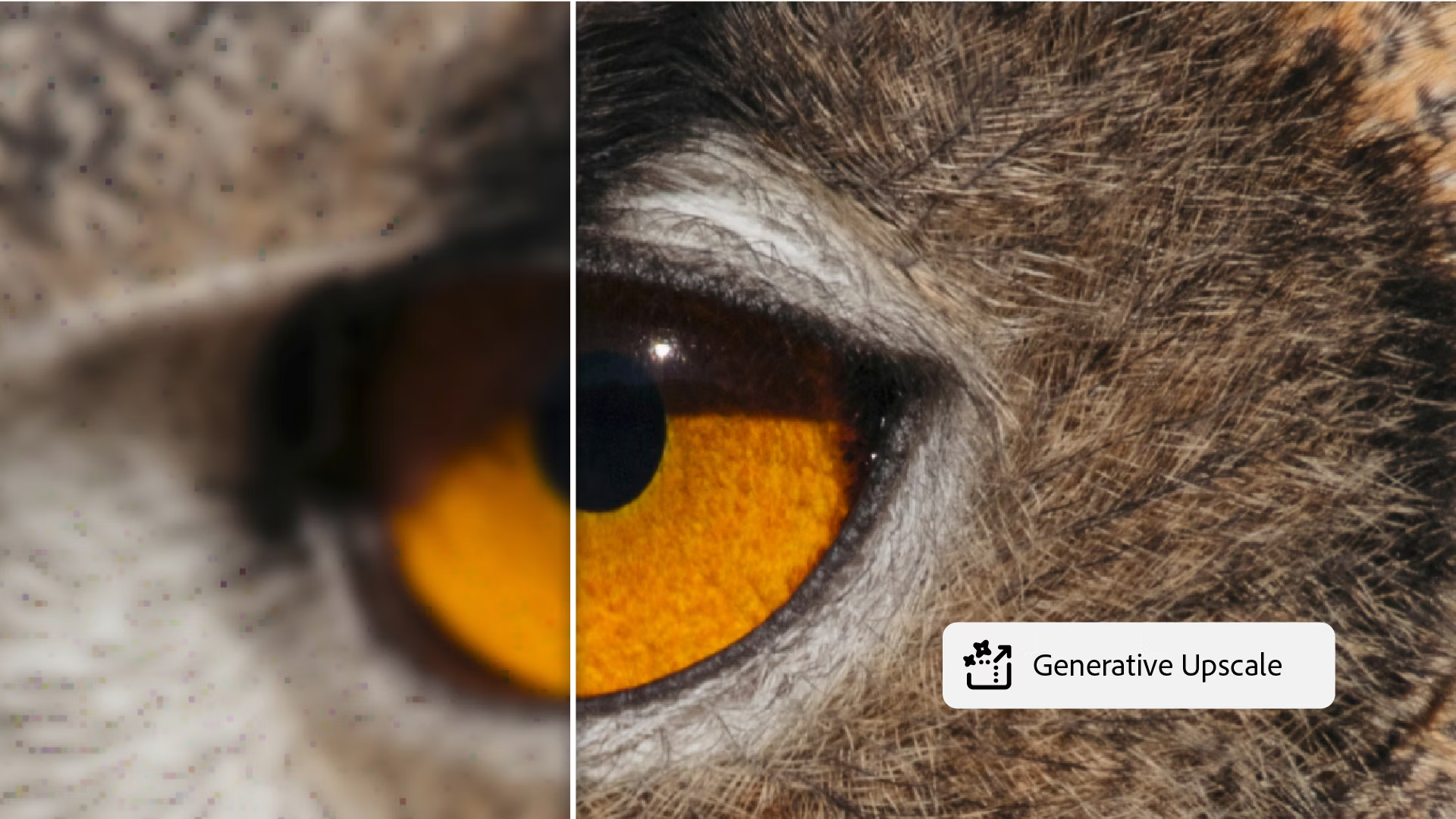
In the old days of Photoshop, if you tried to take a tiny 500-pixel image and blow it up to 4,000 pixels using “Image Size,” the software simply stretched the existing pixels and guessed the colors in between. The result was a blurry, pixelated, watercolor-looking mess. It was functionally useless for professional print.
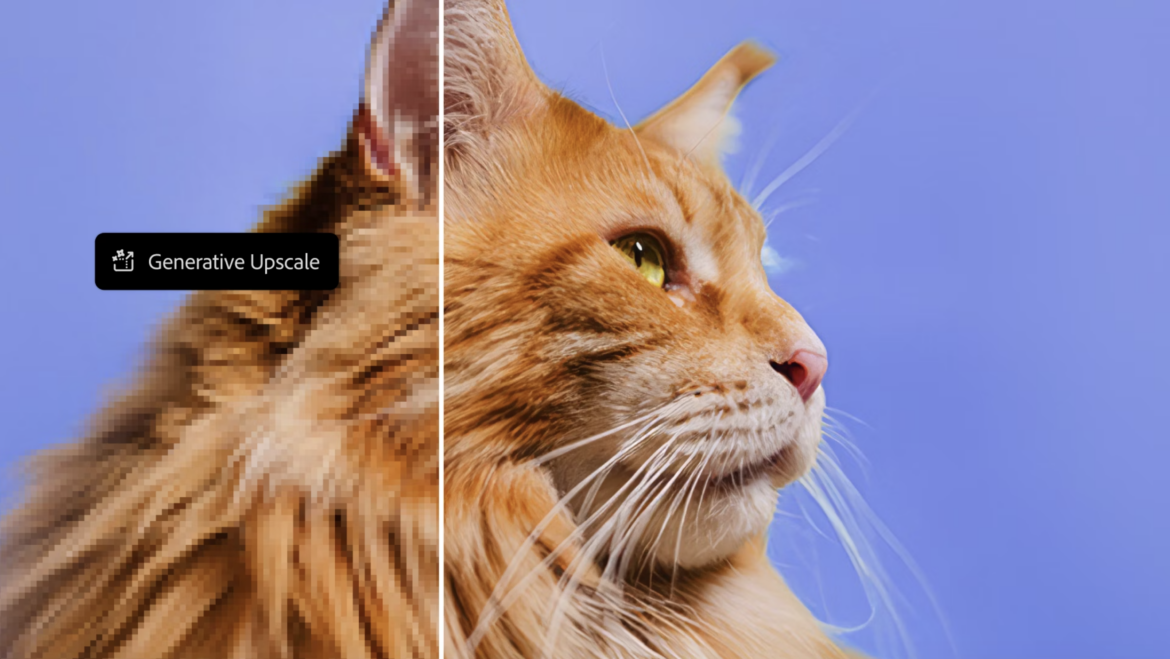
Generative Upscale, officially introduced with the Photoshop 2026 updates (Version 27.0), does not stretch anything. It essentially acts as a hyper-intelligent digital artist. When you ask it to enlarge an image by 2x or 4x, the AI analyzes the low-resolution shapes, understands what the object is supposed to be, and re-generates the entire image from scratch, injecting brand new, hyper-realistic details that were never there to begin with.
“It does not just make your blurry photo bigger. It looks at a blurry brown smudge, realizes it is supposed to be a dog’s fur, and individually paints high-resolution strands of hair to fill the new space.”

The Secret Weapon: The Topaz Labs Partnership
The absolute best part of this update is that Adobe did not just rely on their own Firefly engine. They quietly partnered with Topaz Labs, the undisputed kings of AI image enhancement.
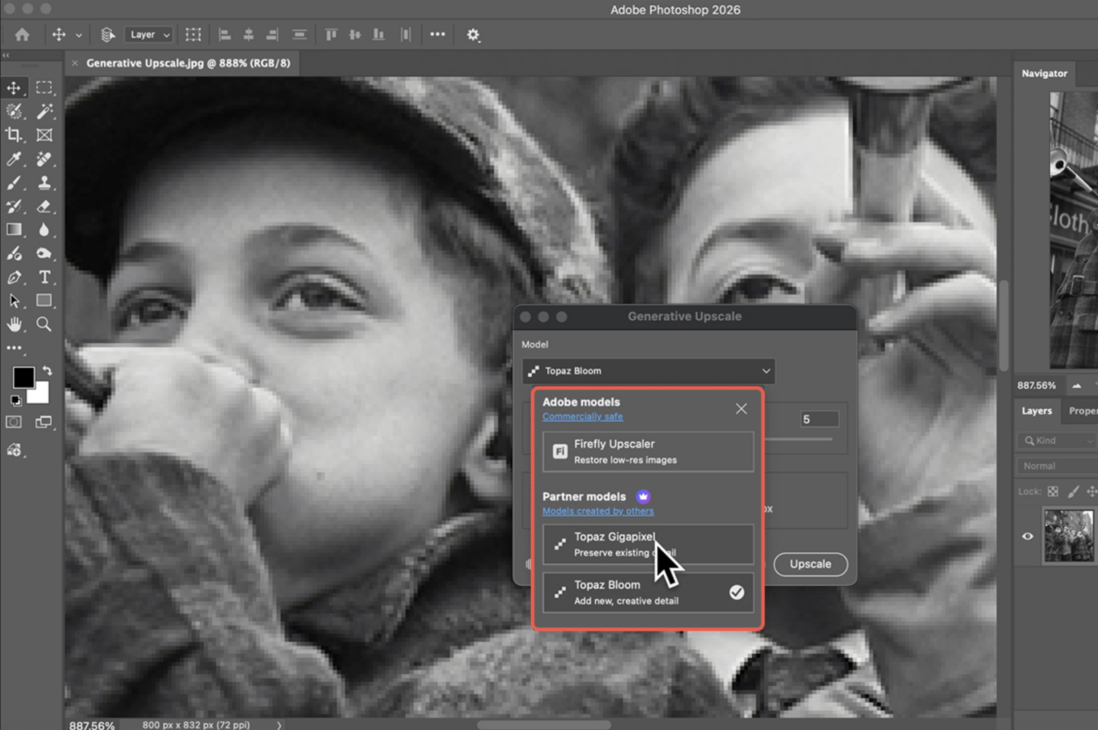
When you open the Generative Upscale dialog box, you aren’t stuck with one generic algorithm. You are given a choice of three completely different AI upscaling models, built right into Photoshop without requiring a separate plugin subscription:
- Adobe Firefly Upscaler: The default choice. It is fantastic for maintaining the exact original identity of the photo while cleaning up compression artifacts and restoring basic details.
- Topaz Gigapixel: The industry standard. Choose this when you are dealing with realistic textures like human skin, architecture, or fabric. It is terrifyingly good at pulling high-frequency detail out of absolute blur.
- Topaz Bloom: The creative engine. This model is designed specifically for AI-generated art or highly stylized assets. It doesn’t just sharpen; it actively adds new, visually striking textures to the piece.
The 4-Step Workflow
Using this feature is ridiculously simple. It takes less time to upscale the photo than it does to write a passive-aggressive email to your client.
- Open the Image: Load your terrible, low-resolution client photo into Photoshop.
- Trigger the Tool: Go up to the top menu bar, click “Image,” and select “Generative Upscale.”
- Pick Your Engine: In the dialog box, click the Model box to select your preferred AI (Firefly, Gigapixel, or Bloom).
- Choose Your Scale: Select either 2x or 4x enlargement, and hit “Upscale.”
Photoshop will take a minute or two to communicate with the cloud servers, and it will automatically open the massive, crystal-clear result in a brand new document tab, leaving your original file completely untouched.
Comparing the Upscale Models
To help you decide which engine to use on your next project, here is a quick cheat sheet:
| The AI Upscale Model | Best Used For | Maximum Output Resolution |
| Adobe Firefly | Small, blurry photos, old scanned prints | Up to 6144 x 6144 pixels |
| Topaz Gigapixel | Realistic portraits, macro photography, landscapes | Up to ~56 megapixels |
| Topaz Bloom | Concept art, AI-generated images, creative textures | Up to ~9 megapixels |
The Only Catch: Generative Credits
Before you start upscaling every single web image on your hard drive, there is one factual limitation you need to know about.
Because the heavy lifting is done on cloud servers—especially when utilizing the Topaz Labs models—Generative Upscale consumes your Adobe Generative Credits. If you are on a standard Creative Cloud plan, you have a monthly allowance, but processing a batch of massive 4x upscales using Gigapixel will drain that allowance quickly.
Use the tool strategically. When a client sends a usable high-resolution file, use it. But when your back is against the wall and the deadline is looming, Generative Upscale is the ultimate safety net. It is the closest thing to a magic “Enhance” button the design world has ever seen.