Agent Mode 101: Letting Photoshop Do the Boring Work
You did not become a digital artist so you could spend four hours masking out 50 slightly different product photos. You became an artist to create. Yet, for decades, being a Photoshop wizard meant accepting that 70% of your job was mind-numbing, repetitive pixel-pushing.
As of April 2026, we can officially say goodbye to the grunt work. Adobe’s massive push into “Agentic AI” has transformed Photoshop from a passive canvas into an active collaborator. The new Agent Mode isn’t just a tool; it is essentially a junior graphic designer living inside your computer, waiting for you to tell it what to do.
If you are ready to transition from being a manual pixel-pusher to a creative director, here is everything you need to know about letting Photoshop handle the boring stuff.
The Death of the Photoshop “Action”
If you have been using Photoshop for a while, you are probably familiar with the Actions panel. You would record yourself clicking 15 specific buttons, save the macro, and hit play on a new image. It was great, right up until you accidentally renamed a layer and the entire macro broke, throwing a terrifying error message on your screen.
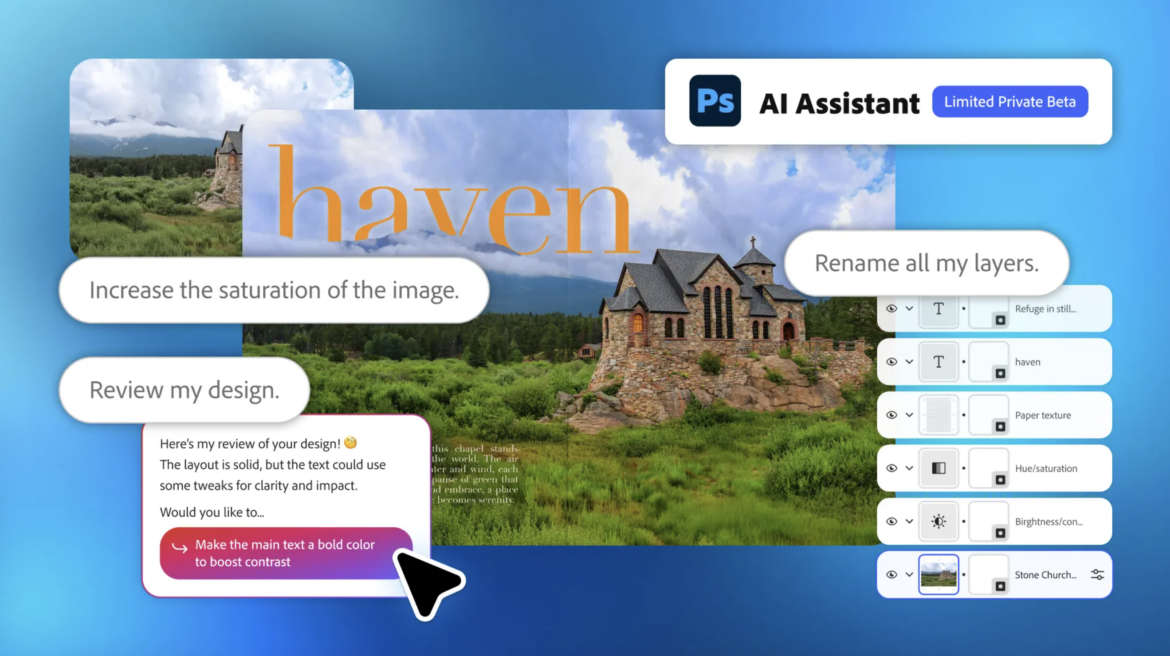
Agent Mode replaces that fragile system with conversational AI. It does not blindly follow a recorded script. Powered by the Firefly Agent ecosystem, it understands creative intent. It knows what a background is, it knows what color grading means, and it knows how to adapt if one photo is slightly darker than the rest.
“The magic of Agentic AI isn’t just that it can generate an image; it is that it can perceive a problem, reason out the steps to fix it, and execute those actions autonomously across an entire folder of assets.”
Conversational Prompts That Actually Work
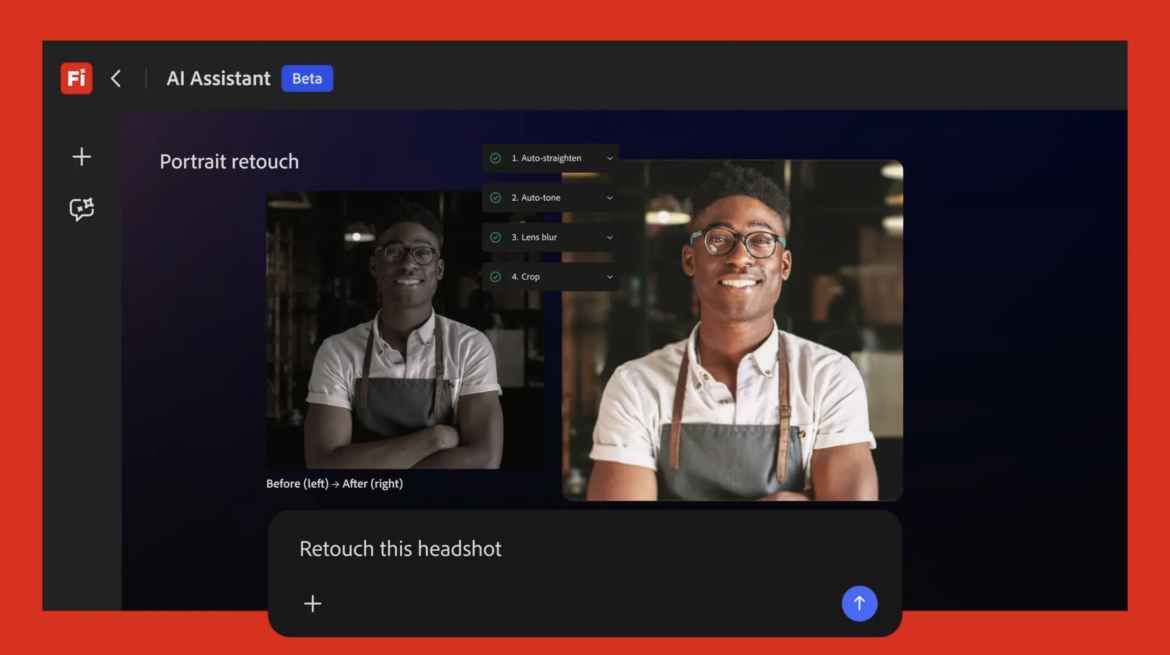
You no longer need to dig through five nested menus to run a batch edit. Agent Mode operates via a simple text interface. You speak to it like you would a human assistant.
Here are a few real-world examples of how you can command your Agent right now:
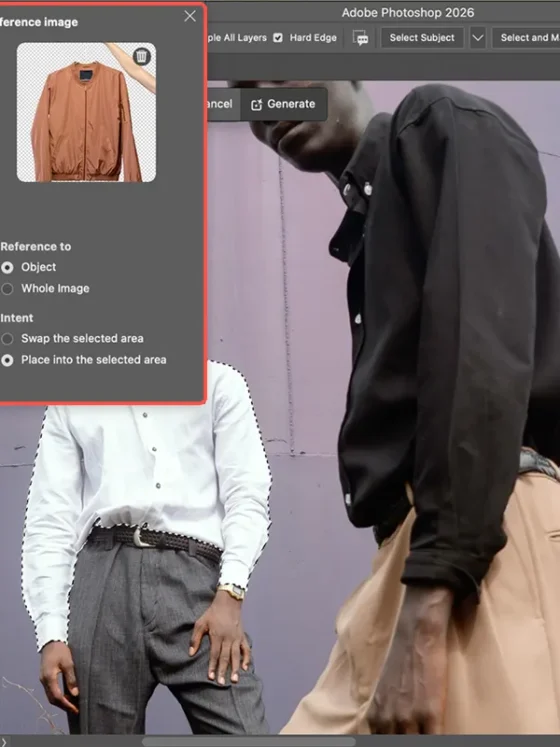
- The E-Commerce Cleanup: “Open the ‘Spring Catalog’ folder. Mask out the backgrounds of all 45 images, place the subjects on a pure white background, add a subtle drop shadow at a 45-degree angle, and export them all as web-optimized PNGs.”
- The Mood Shifter: “Take all the layers in this document group and color grade them to look like golden hour photography. Warm up the highlights and crush the blacks slightly.”
- The Organization Freak: “Analyze my current document. Group all text layers into a folder called ‘Typography’, group all adjustment layers into a folder called ‘Color’, and delete any empty layers.”
You type the command, press enter, and watch as the Agent autonomously flies through the steps in seconds.
The Brand Consistency Superpower
One of the most powerful features introduced in the 2026 Adobe updates is the Agent’s ability to maintain brand identity. If you are working on a massive marketing campaign, keeping colors, fonts, and visual styles identical across hundreds of assets is a nightmare.
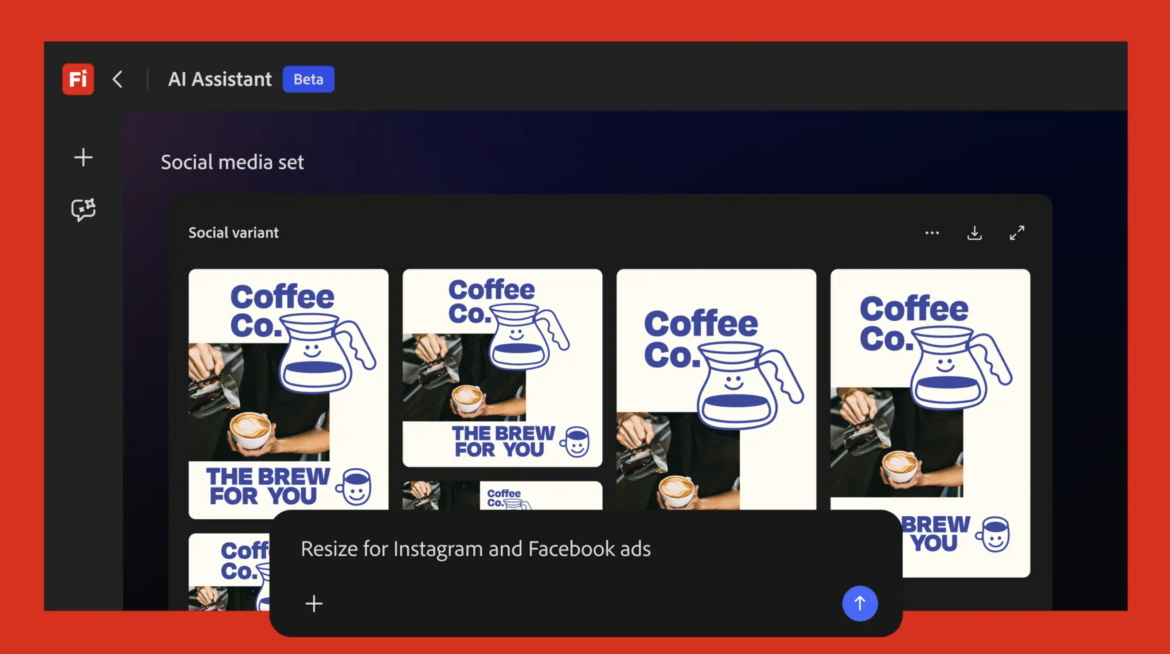
You can now feed your Photoshop Agent a “Brand Context” document. This gives the AI strict guardrails. If you ask the Agent to resize and reformat a master poster into 15 different social media banner sizes, it will autonomously move the elements around while strictly adhering to your brand’s specific typography rules, hex codes, and padding requirements.
What Happens When the AI Messes Up?
As much as we love the new tech, AI is not flawless. Sometimes you ask it to remove the background, and it confidently removes your client’s left arm instead.
Fortunately, Adobe built Agent Mode with a heavy emphasis on state management and progressive autonomy.
- The Preview Phase: Before executing a massive 50-image batch edit, the Agent will process one image and pause, asking for your human approval to proceed.
- Non-Destructive Execution: The Agent is programmed to work non-destructively by default. It relies heavily on layer masks and smart objects rather than permanently deleting pixels.
- The Ultimate Undo: Because of its state management framework, if the Agent completes a 10-step process and you hate the result, you do not have to mash Ctrl + Z fifty times. A single “Rollback” command reverts the entire project to the exact state it was in before you deployed the Agent.
The Workflow Reality Check
Still on the fence about giving up control? Here is a quick breakdown of how your afternoon looks with and without Agent Mode.
| Task | Manual Workflow | Agent Mode Workflow |
| Masking 20 Portraits | 45 minutes of clicking the Select Subject button and refining hair edges. | 1 text prompt. 45 seconds of automated processing. |
| Resizing for Socials | Manually cropping and moving text for Instagram, X, and LinkedIn. | 1 text prompt. Agent auto-frames based on platform specs. |
| Layer Organization | Scrolling through “Layer 42 copy 3” to find your text. | Agent autonomously groups and names layers by content type. |
| Your Energy Level | Drained, frustrated, and behind schedule. | Relaxed, focused purely on the final creative review. |
Letting go of the manual control can feel unnatural at first. But once you realize that your value as a designer lies in your creative vision, not your ability to quickly click the lasso tool, Agent Mode becomes the greatest asset in your digital toolkit. Let the machine do the boring work; save your brainpower for the art.